Two-Factor Authentication Setup Guide: Secure Every Account
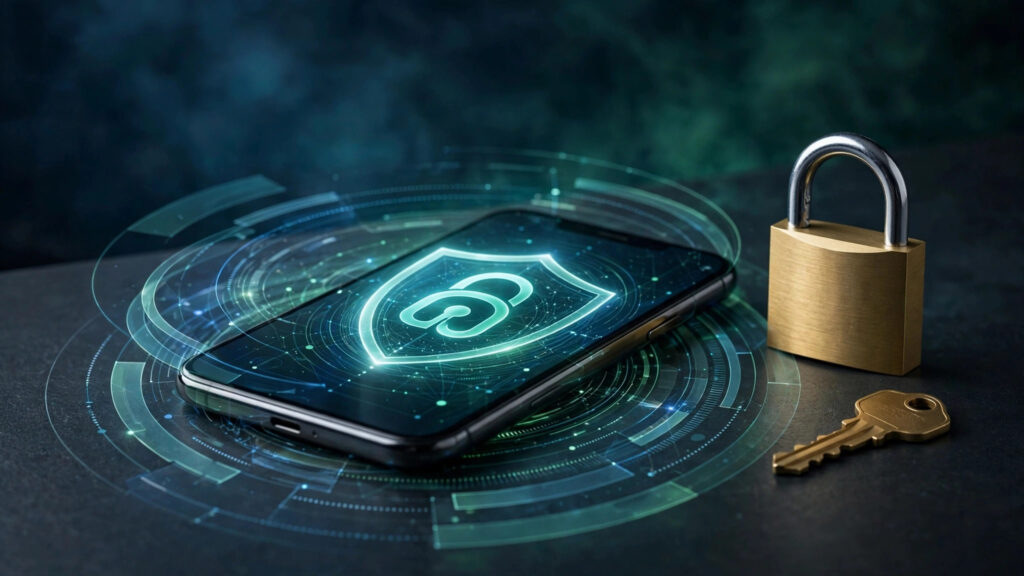
Passwords get stolen every day — in breaches, phishing attacks, and credential-stuffing sprees. Two factor authentication setup is the single highest-leverage security action you can take: even if attackers have your password, they cannot log in without the second factor. This guide walks you through securing every important account, in order of priority.
Plan on 30–45 minutes. Do it once, and your accounts become dramatically harder to compromise.
Two Factor Authentication Setup Step 1: Choose Your Second Factor
Not all second factors are equal. From strongest to weakest:
- Passkeys — cryptographic login bound to your device; phishing-proof because there is nothing to type or intercept. Enable wherever offered.
- Hardware security keys (YubiKey, Titan) — physical USB/NFC keys; the gold standard, immune to phishing and SIM swapping.
- Authenticator apps (Google Authenticator, Authy, 1Password) — time-based one-time codes; strong and free. The best choice for most people.
- SMS codes — better than nothing, but vulnerable to SIM-swapping attacks. Use only when nothing better is offered.
Recommendation: use an authenticator app as your default, upgrade critical accounts (email, banking, password manager) to a hardware key or passkey, and avoid SMS wherever alternatives exist.
Two Factor Authentication Setup Step 2: Secure Accounts in Priority Order
Order matters — your email is the master key, since password resets flow through it. Secure it first.
- Email (Gmail, Outlook, iCloud): enable 2FA in security settings; prefer passkeys or authenticator app. Save the backup codes.
- Password manager: your vault holds everything — protect it with your strongest factor, ideally a hardware key.
- Banking and finance: enable every available option; many banks still default to SMS, so check for authenticator or hardware-key support.
- Apple ID / Google account: these control device access, purchases, and location — enable their built-in 2FA fully.
- Social media: Facebook, Instagram, X, LinkedIn all support authenticator apps; social accounts are prime impersonation targets.
- Work and cloud storage: anything holding client data or backups gets 2FA, no exceptions.
Step 3: Handle Backup Codes and Recovery
This step is what separates a secure setup from a future lockout disaster. When you enable 2FA, every service shows backup/recovery codes — one-time codes that bypass 2FA. Save them immediately: print them and store them somewhere safe (a home safe, not a desk drawer), or save them in your password manager’s secure notes.
For authenticator apps, enable encrypted cloud backup (Authy) or export your seeds — a lost phone without backup means a painful recovery process for every account. If you use a hardware key, buy two and register both everywhere; keep the spare somewhere safe.
Upgrading to Passkeys: The Future Is Here
Passkeys deserve special attention: they replace passwords entirely with device-bound cryptography. You log in with your fingerprint or face; there is nothing to phish, nothing to leak in a breach, nothing to remember. Google, Apple, and Microsoft all support them, and adoption is accelerating.
Practical approach: where a service offers passkeys, create one in addition to keeping your password + authenticator for now. As passkey support matures, they will become your primary method. Within a few years, “two factor authentication setup” guides like this one may read as quaint history — the password itself is on its way out.
Do not forget the people around you. The most common 2FA failure is not technical — it is a family member with no 2FA whose compromised email becomes the recovery address for your accounts, or an employee whose unprotected account gives attackers a foothold into company systems. After completing your own two factor authentication setup, spend fifteen minutes helping your partner, parents, or team do the same — starting with their email. For businesses, enforce 2FA with an authenticator app or hardware key as a requirement, not a suggestion: most major breaches of small companies trace back to one unprotected account. Security is a team sport, and your accounts are only as safe as the weakest recovery path connected to them.
Finally, review your 2FA settings once a year: remove old devices, confirm your backup codes still exist, and upgrade any SMS-based logins where better options have appeared.
FAQs
Q: What is the best two-factor authentication method?
A: Passkeys or hardware security keys are strongest (phishing-proof). Authenticator apps are the best balance of security and convenience for most people. Avoid SMS when alternatives exist.
Q: What happens if I lose my phone with my authenticator app?
A: Use your saved backup codes to log in and re-enroll a new device — which is why saving those codes during setup is essential. Cloud-backed authenticator apps make this much easier.
Q: Is SMS two-factor authentication safe?
A: Safer than no 2FA, but vulnerable to SIM-swapping. Upgrade to an authenticator app or passkey wherever the service allows it.
Q: Do passkeys replace passwords completely?
A: Eventually, yes — that is the design goal. Today, most services offer passkeys alongside passwords; enable them where available and keep a strong unique password as backup.

admin
Tech writer at HubTech Fusion covering the latest in technology, from AI to cybersecurity and beyond.
Related Articles

What Is Zero Trust Security? A Plain-English Explanation
For decades, network security worked like a medieval castle. Build a strong wall (the firewall), put a moat around it, and trust…
How to Spot Phishing Emails: 12 Red Flags to Watch For
Phishing remains the number one way attackers break in — not through sophisticated hacking, but through deceptive emails that trick you into…
Ransomware Protection: How to Keep Your Data Safe
Ransomware remains the most financially devastating cybercrime facing individuals and businesses: attackers encrypt your files and demand payment for the key, often…